
Have you lost data due to a virus infection or system crash but never been able to retrieve it? With data backup, things will be much simpler. This full guide from MiniTool will introduce you to how to back up files on Windows 10/11, especially the handy tool MiniTool ShadowMaker.
Quick Introduction
Backing up files is one of the most effective methods to protect your data from accidental deletion, malware attacks, system crashes, or hard drive failure.
The best way to back up files on Windows 11/10 is to combine local backup and cloud backup, ensuring your photos, documents, and work files are always protected.
Learn how to protect files from data loss through these methods:
- Copy and paste files to an external hard drive
- Use backup software such as MiniTool ShadowMaker
- Use File History
- Save files to a cloud service like OneDrive
Why Is File Backup Important?
Backing up files means creating copies of important files or folders and storing them on an external hard drive, USB drive, NAS, or cloud. Once the original data is deleted or damaged, it is easy to restore it from a backup copy.
Without backups, files may be lost permanently because of:
- Virus or malicious software
- Human error
- Power outages
- Hard drive failure
- Windows update issues
- System crashes
- Device theft
You may not realize the importance of backups until valuable data is unexpectedly lost. Prevention is better than cure!
What Files Should I Back Up?
| File Type | Examples |
| Documents | Word, Excel, PDF, and project files |
| Media & creative | Family photos, videos, music libraries, and raw assets |
| User data | Desktop files, downloads, Sticky Notes |
| Gaming | Local game saves, custom mods, and configuration files |
| Browser | Bookmarks and saved passwords |
| Software | License keys & activation codes |
How to Back Up Files in Windows 11/10
| Backup Method | Best for | Difficulty | Automatic Backup | Advantages |
| Copy and paste to an external drive | Quick manual backups of important files | Very easy | No | Simple and no software required |
| MiniTool ShadowMaker | Full backup protection and advanced backup management | Easy | Yes | Supports scheduled, incremental, and differential backups |
| File History | Personal files and daily use | Easy | Yes | Built into Windows 10 and Windows 11 |
| OneDrive | Remote access across devices | Easy | No (Real-time sync) | Files available anywhere |
Method 1: Manual Copy & Paste
Best for:
- Quick temporary backups
- Transferring files between devices
- Users who only need to back up a small number of files
This is the simplest way to back up files, without installing additional software. You can directly copy important files from a computer to an external hard drive or USB flash drive for data protection.
Steps to backup files to external hard drives:
- Connect an external drive to your computer.
- Press Win + E to open File Explorer.
- Locate the files or folders you want to secure, right-click the selected items, and choose Copy.
- Open the external drive, right-click an empty space, and select Paste.
Also, you can use the keyboard shortcuts:
- Copy: Ctrl + C
- Paste: Ctrl + V
Pros and cons
| Pros | Cons |
| 1. No software installation required. 2. Easy and beginner-friendly. 3. Fast for small amounts of data. 4. Works on all Windows versions. | 1. Requires manual operation every time. 2. Cannot create system image backups. 3. Doesn’t support automatic scheduling. |
Method 2: Use Backup Software: MiniTool ShadowMaker
Best for:
- Users looking for flexible backup options, such as scheduled backup
- Backing up large amounts of data
- Creating full system image backups and important files
Using backup software is one of the most reliable ways to back up files, folders, and even the entire system/hard drive. Compared with the copy-paste method, this option can automate the backup process and provide advanced features.
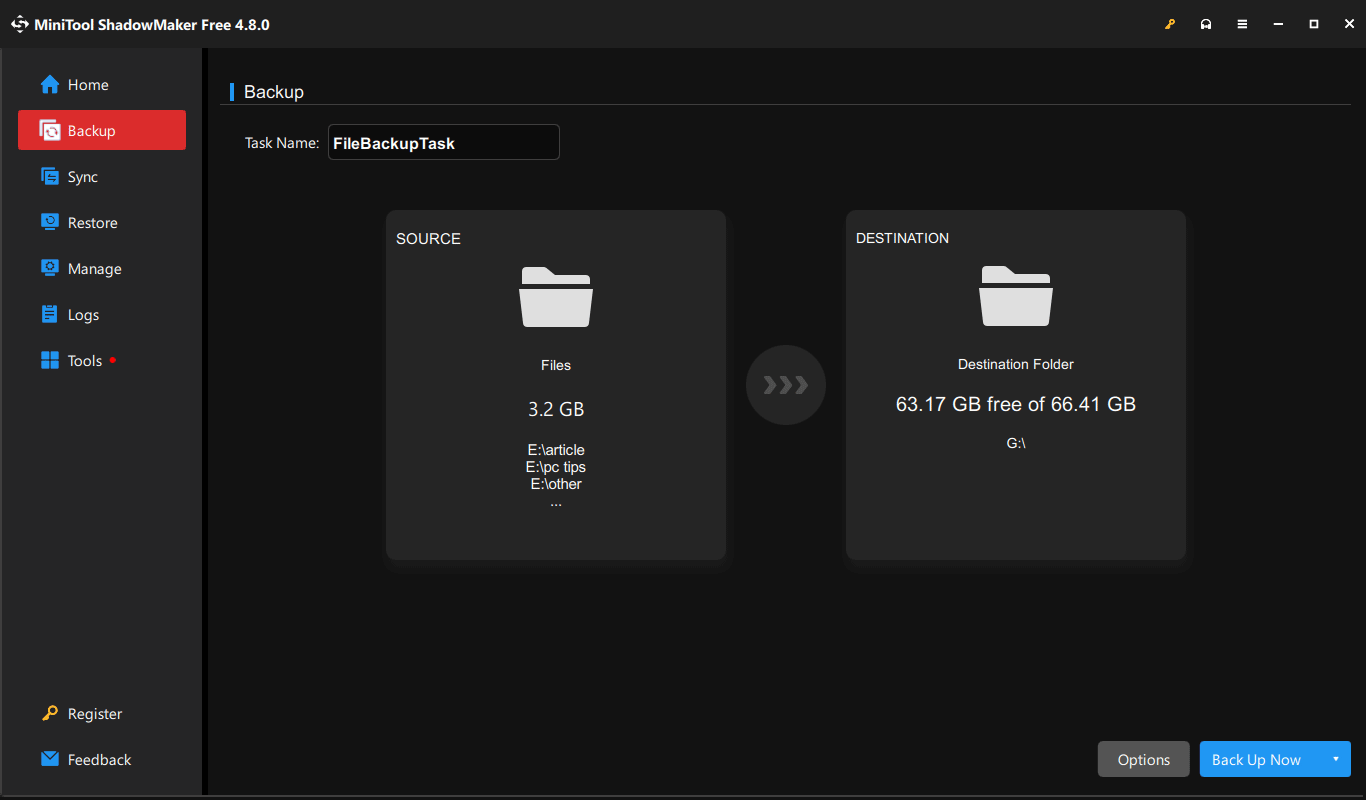
MiniTool ShadowMaker, professional file backup software for Windows 11/10 and Windows Server 2025/2022, can provide better protection for your data.
It is suitable for both beginners and advanced users, supporting:
- Automatic backup
- Incremental backup
- Incremental backup
- Disk cloning
- Full system image backup
- Backup encryption
Steps to backup files to external hard drive:
Step 1: Connect the drive to your computer.
Step 2: Navigate to the Backup tab.
Step 3: For data backup, click SOURCE > Folders and Files, and choose the files that you need to back up.
Step 4: Choose the external drive under DESTINATION.
Step 5: Click Back Up Now.
Pros and cons
| Pros | Cons |
| 1. Backs up files, folders, disks, and partitions on the clean and friendly user interface. 2. Supports automatic, differential, and incremental backups. 3. Offers faster recovery after system crashes or data loss. 4. Allows for backup and recovery in WinPE. 5. Restores to dissimilar hardware. | 1. Requires software installation. 2. Requires a paid edition to unlock advanced features. |
Method 3: Automatically Back Up Files Using File History
Best for:
- Backing up personal files and folders
- Recovering previous file versions
- Basic automatic file backup needs
File History, built into Windows 11 and Windows 10, can help automatically back up files to an external hard drive or a network location. It primarily creates copies of files in your library, including the Desktop, Documents, Pictures, Downloads, Videos, and Music folders.
How to back up files in Windows 10 with File History
Step 1: Connect a USB or external drive to the computer.
Step 2: Navigate to Settings > Update & Security > Files backup.
Step 3: Click Add a drive to choose a backup destination drive.
Step 4: Enable Automatically back up my files.
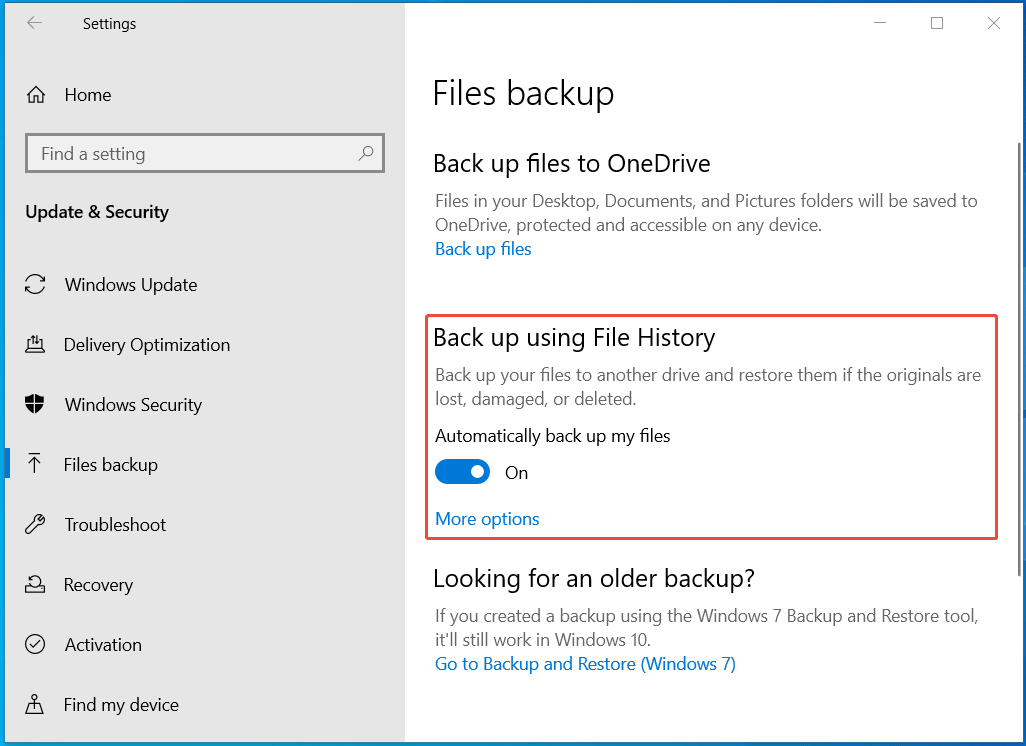
Step 5: Click More options to customize backup frequency and folder settings.
Pros and cons
| Pros | Cons |
| 1. Built into Windows 11/10. 2. Free and easy to use. 3. Supports automatic backups. 4. Allows restoration of previous file versions. | 1. Mainly backs up user folders instead of the full system. 2. Requires a backup destination to remain connected. 3. Offers less flexibility than professional backup software. |
Method 4: Back Up Files to OneDrive
Best for:
- Accessing files across multiple devices
- Backing up documents, photos, and personal files online
- Users who frequently work across PCs and mobile devices
- Protecting files from local hardware failure
OneDrive allows you to store files in the cloud, making them accessible across multiple devices through the same Microsoft account.
How to back up files to the cloud
Step 1: Sign in to your Microsoft account.
Step 2: Open OneDrive settings by clicking Settings.
Step 3: In the Sync and backup tab, click Manage backup.
Step 4: Enable the backup for the folder you want to sync and click Save changes.
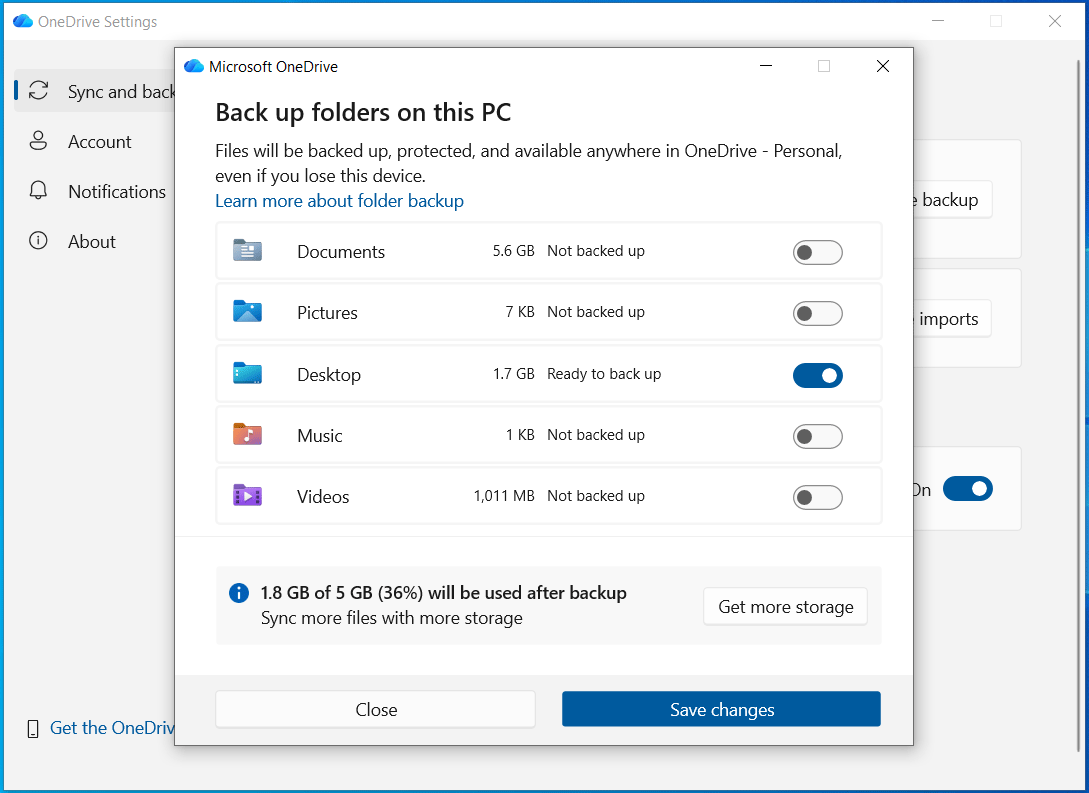
Step 5: Files will sync automatically.
Pros and cons
| Pros | Cons |
| 1. Allows you to access files anywhere. 2. Offers protection against hardware failure. 3. Integrated with Windows and Microsoft 365. | 1. Requires an internet connection for syncing and access. 2. Offers limited free storage space, 5GB. |
When Should You Back Up Files on Windows 11/10?
Backing up files regularly is recommended to reduce the risk of losing important files. Also, you can create backups before major system changes.
The common scenarios include:
- Before installing a major Windows 11 update
- Before upgrading or replacing an SSD/HDD
- Before replacing a motherboard
- Before performing a factory reset or system reinstallation
- On a daily or weekly schedule for ongoing protection
Local File Backup vs Cloud Backup
| Feature | Local Backup | Cloud Backup |
| Internet required | No | Yes |
| Access anywhere | No | Yes |
| Backup speed | Faster | Depends on the internet speed |
| Storage cost | One-time purchase | Subscription possible |
| Protection from hardware failure | Partial | Better |
Best Backup Strategy: 3-2-1 Rule
One of the most recommended methods to protect files from data loss is to follow the 3-2-1 backup strategy. This rule helps reduce the risk of data loss caused by accidental deletion, hardware failure, natural disasters, and hardware failure.
3-2-1 rule means:
- Keep 3 copies of your data, 1 original and 2 backup copies
- Stores backups on 2 different storage devices, such as an external hard drive and cloud storage
- Keep 1 copy offsite or in the cloud
The strategy is widely used by personal users and businesses because it provides a balance of local and cloud backup protection. This keeps files accessible, secure, and recoverable in different data loss scenarios.
Back Up Files FAQ
Conclusion
Regular file backups are essential to protect personal and business data. Whether you choose to back up files to an external hard drive or the cloud, having backup copies greatly reduces the risk of serious data loss.
For users who need more flexible backup options, tools like MiniTool ShadowMaker can simplify the entire backup process.
If you have issues when using MiniTool ShadowMaker, contact [email protected].
About The Author

Position: Columnist
Vera has been working at the MiniTool Team for over 10 years as a technical editor and content writer. She mainly focuses on disk and partition management, data recovery, Windows backup and restore, and PC troubleshooting. Through in-depth software testing and hands-on experience, she has helped users solve a wide range of computer problems and better protect their data on Windows devices.
User Comments :