
This MiniTool article teaches you how to force delete a file that cannot be deleted. The available tools include the Shift+ Delete keyboard shortcuts, CMD, PowerShell, WinRAR, and Task Manager.
Cannot Delete a File on Windows 10/11?
On Windows 10/11, being unable to delete files is a common yet frustrating problem.
Read this article to understand its causes and master the corresponding solutions to free up storage space and prevent potential system vulnerabilities.
Common Reasons Why Files Cannot Be Deleted
Here are some common reasons why files cannot be deleted.
- The file or folder is in use. If a program or background process is accessing the file, the system will prevent the deletion operation.
- The file or folder is corrupted. The deletion operation may fail if the file is corrupted or if there are disk errors.
- The file is read-only. If a file is set to read-only, you must remove the read-only attribute before you can delete it.
- The file path is too long. Windows has a limit on file path length. If the file path exceeds this limit, it may prevent deletion.
- The Recycle Bin is full. In some cases, if the Recycle Bin is full, the file may not be able to be moved to the Recycle Bin properly.
Necessity and Risk of Forced Deletion You Should Know
This section lists the necessity and risks of forced deletion.
Necessity:
- Clean up useless or corrupted files
- Free up space
- Resolve file conflicts
Risks:
- Accidentally delete system files
- Affect program stability
- Exacerbate disk errors
Need to Recover Mistakenly Deleted Files – Try MiniTool Power Data Recovery
If you have accidentally force deleted important files, consider using MiniTool Power Data Recovery to recover them.
Even if files are permanently deleted or bypassed the Recycle Bin, they can be recovered by this powerful software.
In addition, it can handle complex scenarios, dealing with file loss caused by system crashes, disk damage, or partition loss.
This tool supports not only local hard drives but also USB drives, SD cards, external hard drives, and other file storage devices.
This free file recovery software gives you a 1 GB free recovery quota. Download and install it to recover files.
MiniTool Power Data Recovery FreeClick to Download100%Clean & Safe
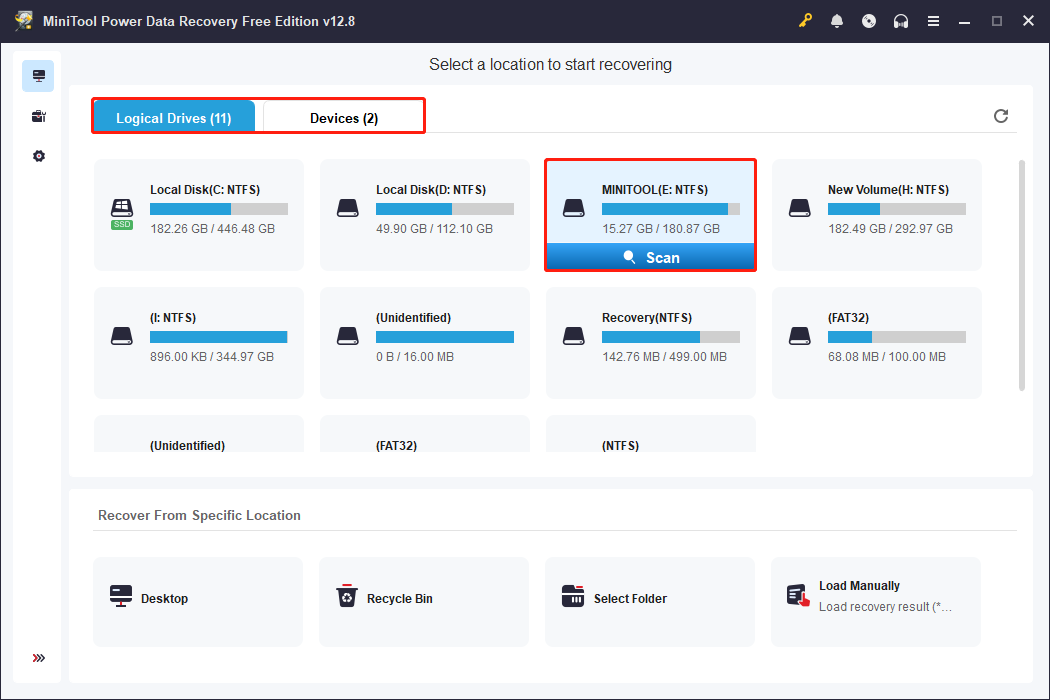
Step 1: Open the software, find the drive where your deleted files were under Logical Drives or Devices, and then click Scan.
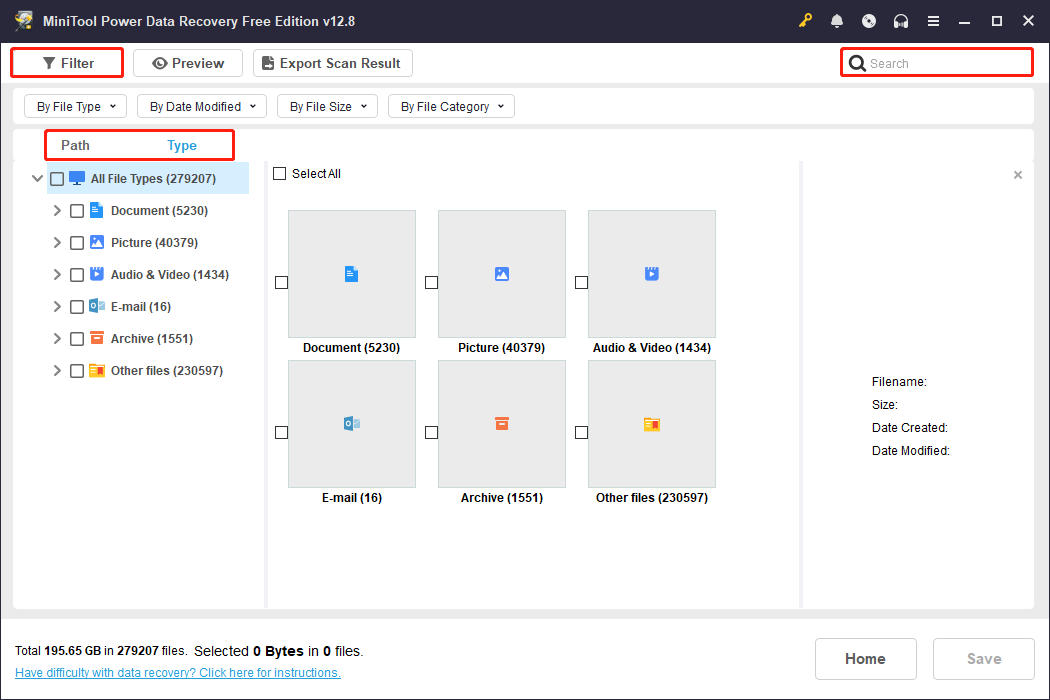
Step 2: When the scan ends, use Path, Type, Filter, and Search to find the target files.
Step 3: After finding the wanted files, double-click them to preview.
Step 4: Finally, check all needed files and click the Save button.
Step 5: In the new window, choose a safe path and click OK.
When the Recovery Completed box shows, click the View Recovered button to check them.
Now, proceed with the following approaches to force delete a file that cannot be removed. During the process, make sure to double-check before deletion to avoid accidentally removing important files.
Need to Force Delete a File – Try the Following Methods
If the stubborn files refuse to be deleted after repeated attempts, try the following methods to force their removal using Shift + Delete, command-line tools, or WinRAR.
Option 1. Force Delete a File by Keyboard Shortcuts
Here is how to delete a file using keyboard shortcuts.
Step 1: Find and select the target file on your computer.
Step 2: Press the Shift + Delete keys on your keyboard.
Step 3: In the pop-up window, click Yes to permanently delete the file.
Option 2. Force Delete a File Through CMD
Follow the steps below to force delete a file using cmd.
Step 1: Right-click the file, select Properties, and copy its location.
Step 2: Type Command Prompt in the Windows search box, right-click the best match, and select Run as administrator.
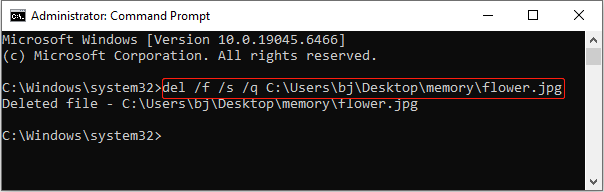
Step 3: Input del /f /s /q [file location\filename.extension] and press Enter to delete the file.
- /f: Forces deletion of read-only files.
- /s: Specifies file deletion from the current directory and all its subdirectories. The filename will be displayed during the deletion process.
- /q: Specifies silent mode. The system will not prompt you for confirmation of the deletion operation.
If this method fails, try the following one.
Option 3. Force Delete a File with PowerShell
Using Windows PowerShell to force delete files is also a feasible method.
Step 1: Open file properties and check the file location.
Step 2: Press Win + X and choose Windows PowerShell (Admin).
Step 3: Type Remove-Item -Path [file location\filename.extension] -Force and press Enter.
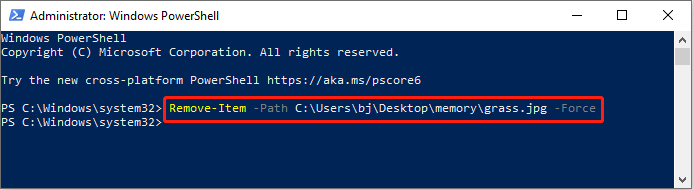
When the process ends, check if the file is deleted.
Option 4. Force Delete a File Using WinRAR
WinRAR has a “compress after deleting files” feature. When you add the target files to the archive, WinRAR will automatically delete the original files after compression is complete.
Step 1: Download and install WinRAR on your computer.
Step 2: Right-click the wanted files and select WinRAR > Add to archive.
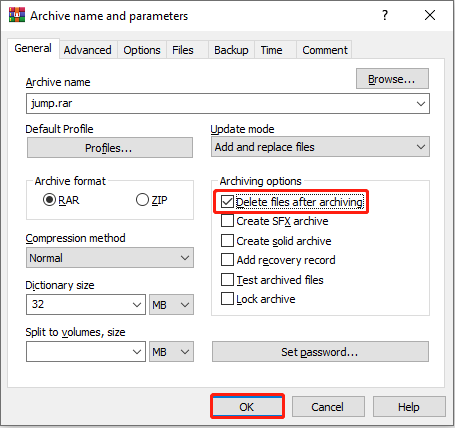
Step 3: In the Archiving options section, check the box for Delete files after archiving.
Step 4: Finally, click OK to confirm the change.
If it doesn’t work, continue with the next one.
Option 5. Force Delete a File from Task Manager
Some processes may be occupying files, making them impossible to delete. Terminating processes that are currently using a file through Task Manager makes it vulnerable to forced deletion.
Step 1: Right-click the Windows button and select Task Manager.
Step 2: Look for the application using the file (e.g., Excel.exe, Word.exe, or explorer.exe if it’s stuck).
Step 3: Right-click the process and select End task.
After that, check whether the file can be deleted.
Option 6. Force Delete a File in Safe Mode
Force-deleting files in Safe Mode is a good option. When Safe Mode is enabled, the system only loads the most basic drivers and services. This prevents files from being used by other programs or processes.
Step 1: Open Settings and click Update & Security > Recovery > Restart now to enter WinRE.
Step 2: Select Troubleshoot > Advanced options > Startup Settings > Restart.
Step 3: When the Startup Settings page shows, press F4 or F5 to enter Safe Mode.
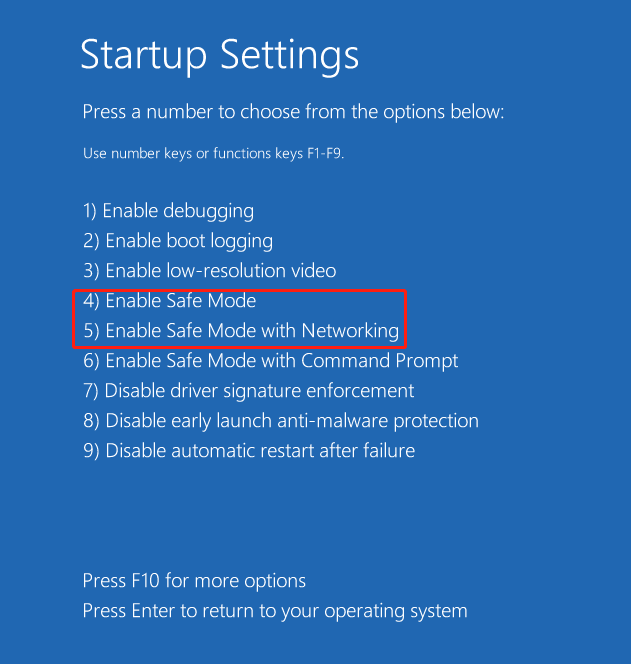
Step 4: In Safe Mode, delete the file according to the above methods.
Final Words
Now, you know how to force delete a file on Windows 10/11.
The tools mentioned include keyboard shortcuts, CMD, PowerShell, and WinRAR. Besides this, ending the task from Task Manager or troubleshooting in Safe Mode are worth trying.
If needed, download MiniTool Power Data Recovery to recover accidentally deleted files.
For any inquiries about the MiniTool product, welcome to contact us at [email protected].
User Comments :