
When formatting a large USB drive or SD card, Windows may not offer the FAT32 option. This guide on MiniTool explains why is FAT32 not an option and shows you how to resolve the issue using reliable disk formatting tools.
If FAT32 is not an option when formatting a drive in Windows, it is usually because the partition is larger than 32 GB.
Windows limits FAT32 formatting to partitions of 32 GB or less, even though the file system itself supports much larger capacities.
To fix this issue, you can:
- Use a third-party formatter to format drives over 32 GB to FAT32
- Create smaller partitions
- Extend an existing FAT32 partition
Below, you will find the causes and step-by-step solutions.
Why Is FAT32 Not an Option When Formatting
The FAT32 option is unavailable for drives larger than 32 GB because Windows limits that.
32 GB Limit for FAT32 in Windows
Windows only allows you to format drives up to 32 GB to FAT32 using File Explorer, Disk Management, or DiskPart.
Due to this limitation, you are likely to encounter the missing FAT32 option when formatting a 64 GB, 128 GB, or larger USB drive, SD card, or other storage devices.
Why Does Windows Limit FAT32 to 32 GB
Windows does not offer the FAT32 option beyond 32 GB mainly to ensure better performance and encourage the use of more modern file systems.
FAT32 is an older file system that has several limitations:
- It cannot store files larger than 4 GB.
- It is less efficient on large drives, especially when storing many small files.
- It does not support journaling, making it more prone to data corruption.
Compared with FAT32, NTFS and exFAT is more stable and efficient.
Next, follow the methods below to fix the FAT32 not an option issue during formatting.
How to Fix the FAT32 Not an Option Issue
This video shows you how to format USB to FAT32:
Windows won’t allow you to format a drive larger than 32 GB to FAT32 using built-in tools such as File Explorer, Disk Management, or DiskPart. For example, if you format the drive with Command Prompt, it will tell you it can’t format to FAT32 because the volume size is too big.
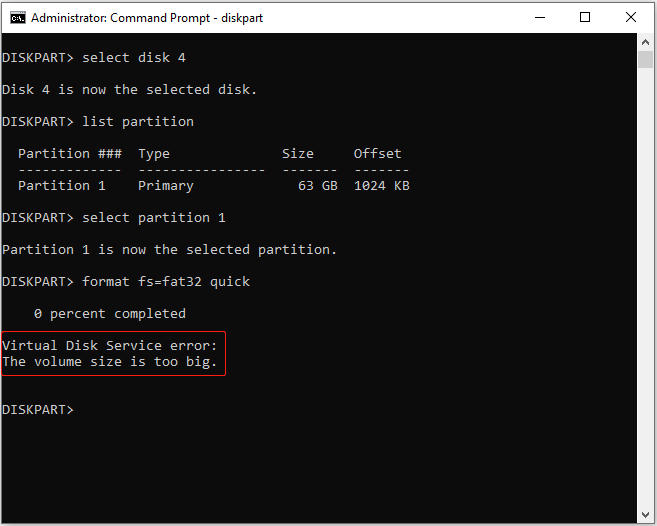
Then, what to do if it can’t format to FAT32? You can use the following 3 methods to fix the problem.
Fix 1. Format the Drive to FAT32 with MiniTool Partition Wizard
MiniTool Partition Wizard is a professional disk management tool. It allows you to format a drive larger than 32 GB to FAT32 for free. If you can’t format USB to FAT32 or can’t format SD card to FAT32, you can try it.
For example, I created a 64 GB VHD drive on my Windows 10 computer and successfully formatted it to FAT32 in under 2 minutes using MiniTool Partition Wizard.
MiniTool Partition Wizard FreeClick to Download100%Clean & Safe
Here’s a simple 3-step guide:
Step 1: Launch MiniTool Partition Wizard and go to its main interface. Select the partition you want to format to FAT32 and click Format Partition.
Step 2: In the Format Partition window, expand the drop-down menu next to File System and choose FAT32. Then, click OK button.
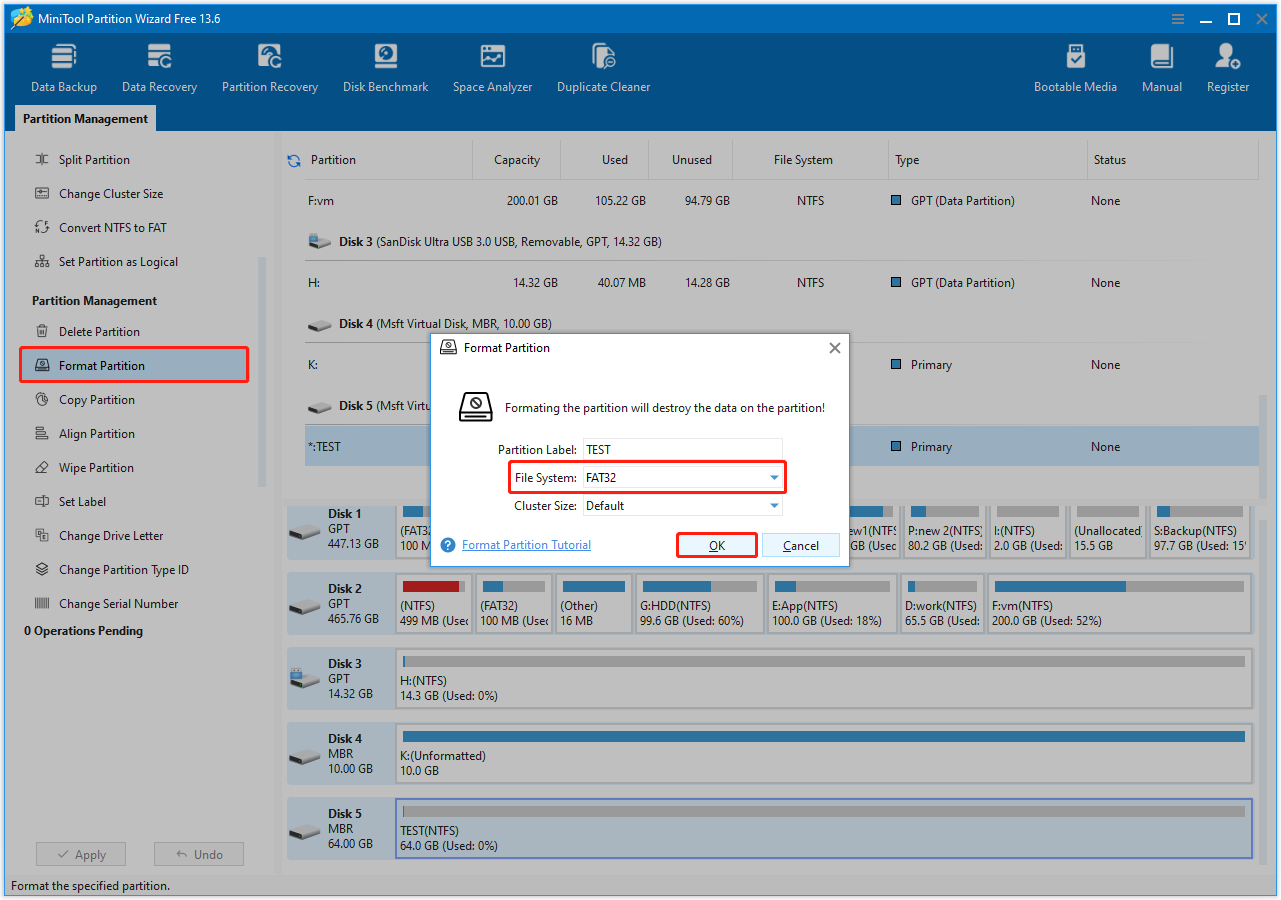
Step 3: Click the Apply button to execute the pending operations.
The Best FAT32 Formatter to Format SD Card/USB Drive
Fix 2. Extend the FAT32 Partition with MiniTool Partition Wizard
This method is ideal if you already have a 32 GB FAT32 partition on your disk and want to extend it without risking data loss. Use the Extend Partition feature in MiniTool Partition Wizard to easily expand the existing FAT32 partition.
For example, I created a 32 GB FAT32 partition on the 64 GB VHD drive, leaving 32 GB of unallocated space.
The Extend Volume option shows grayed out in Disk Management as expected. However, with the Extend Partition feature in MiniTool Partition Wizard, I was able to quickly extend the unallocated space into the existing FAT32 partition in just 3 simple steps.
MiniTool Partition Wizard FreeClick to Download100%Clean & Safe
Step 1: Launch this software and go to its main interface again. Right-click the FAT32 partition and choose Extend from the menu.
Step 2: In the Extend Partition window, choose where to take free space (another partition or unallocated space). Drag the blue block to determine how much space you want to take. Then click the OK button.
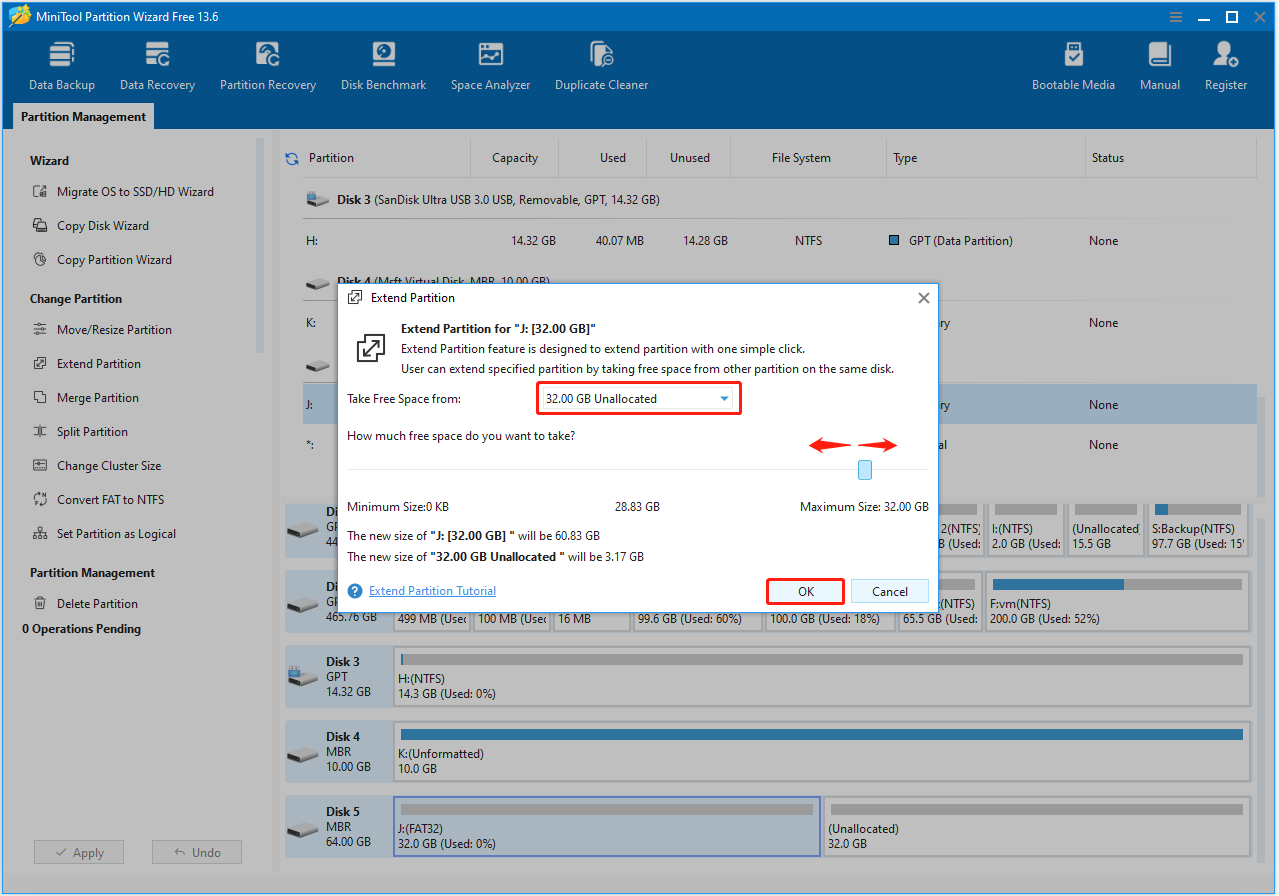
Step 3: Click the Apply button to execute pending operations.
Fix 3. Create Smaller Partitions
If you prefer to use Windows built-in tools, you can break the 32 GB limitation by creating smaller partitions and formatting them to FAT32 separately.
Step 1. In Disk Management, right-click the existing partition and select Shrink Volume.
Step 2. Enter a size of 32 GB or less and confirm. Then you can right-click the reduced partition and format it to FAT32.
Step 3. Right-click the unallocated space and choose New Simple Volume, and follow the prompts to create additional partitions of no more than 32 GB. Then you can format each of them to FAT32.
Bottom Line
Is this post helpful to you? Do you know other reasons that cause the “FAT32 not an option” issue? Do you have other ideas about cluster and cluster size? Please leave a comment in the following zone.
In addition, if you have difficulty in formatting partition, extending partition, or changing cluster size, please contact us via [email protected]. We will get back to you as soon as possible.
FAT32 Not an Option FAQ
Step 1. Right-click the USB drive and select Format.
Step 2. Choose FAT32 as the file system and click Start.
If the USB drive is larger than 32 GB, the FAT32 option will not be available. In this case, you need to use MiniTool Partition Wizard to complete the process.
FAT32 is an older file system with a 4 GB file size limit, while exFAT is a newer file system that supports much larger files.
exFAT is generally preferred for large-capacity drives and files.
1. The partition that you need to format is larger than 32GB. It will show “The volume size is too big” error.
2. The partition need formatting to FAT32 is not the first primary partition on removable disk. It will show “An unexpected error has occurred” error.
3. The drive is write-protected. It will show “The disk is write protected” error.
About The Author

Position: Columnist
Shirley holds a bachelor’s degree in English and has been an editor at the MiniTool Team for many years. She specializes in IT-related content, with a focus on data recovery, file backup, disk management, and other technical topics. She is committed to delivering clear, accurate, and practical solutions to help users resolve common computer issues.
User Comments :